
Superposition MCP Setup Guide: Connect Claude, Codex, and External Tools to Your Recruiting Data

MCP (Model Context Protocol) is an open standard that lets AI agents call tools across different systems. Superposition now supports it in both directions. Your AI agent can call Superposition's recruiting tools directly. And Superposition's agent can call your external tools, including calendar, CRM, and project management tools, mid-workflow.
You set up the connections once, and your agents talk to each other in the background while you work.
How to connect your agent to Superposition
This is how you give your external agent access to Superposition's recruiting tools. Your Claude, Codex, or any other MCP client will be able to read your pipeline, pull candidate data, check interviews, and even trigger Superposition's agent on a natural language prompt.
Setup takes a couple of minutes only. Here's how.
Step 1: Open the MCP settings
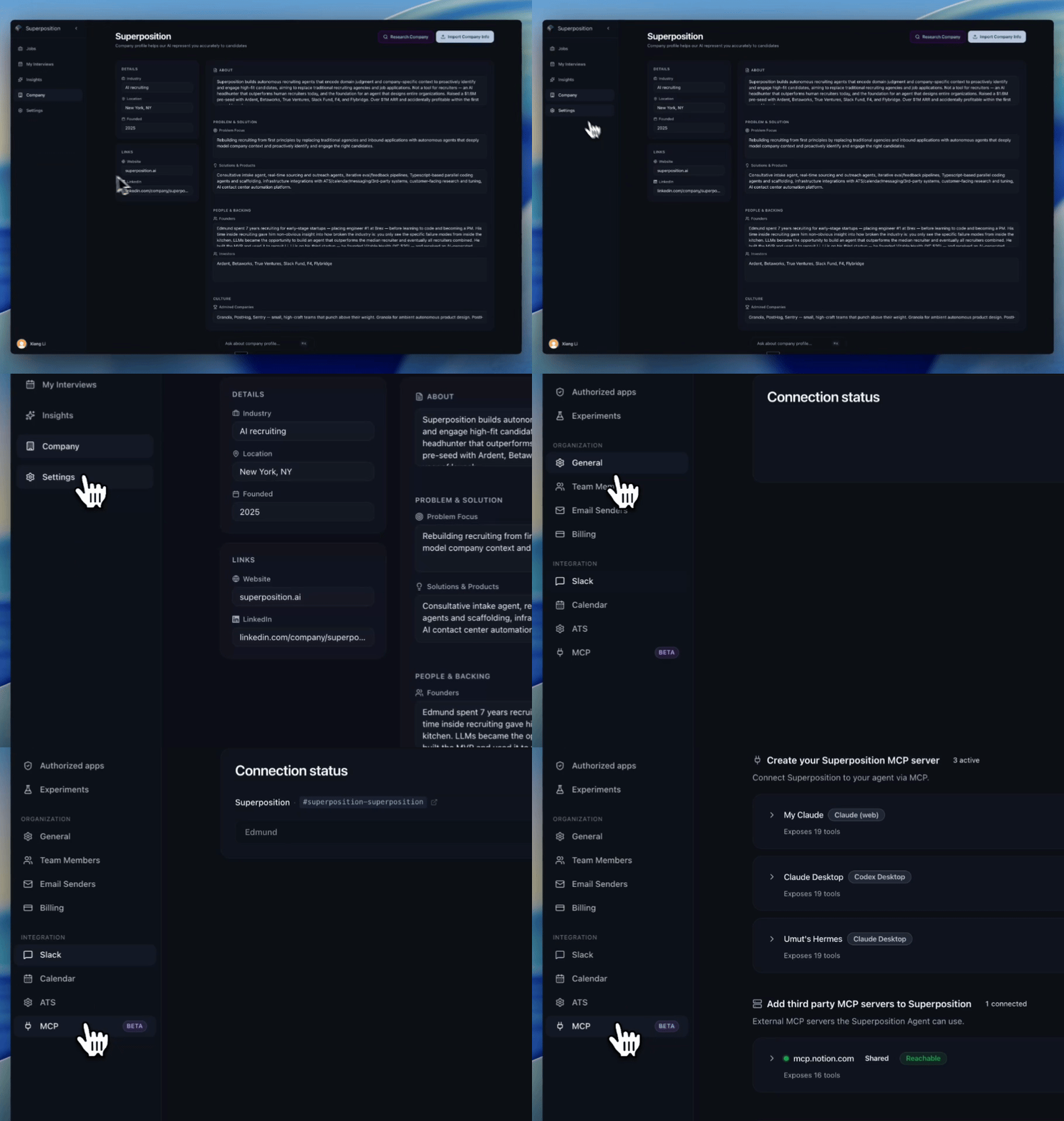
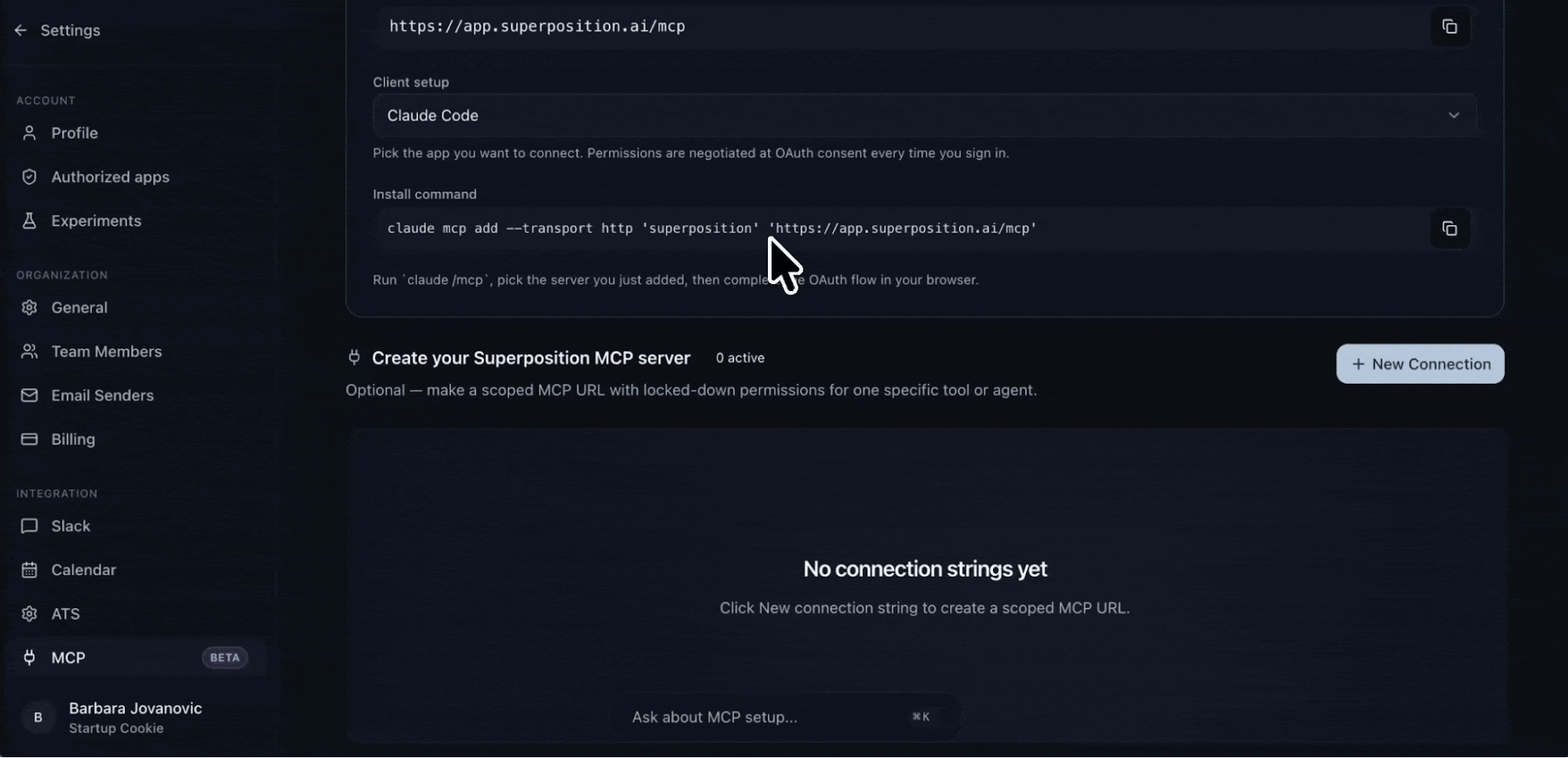
Once you're in your Superposition dashboard, click Settings in the left sidebar. You'll see your account and organization options, and below them an Integration section. Click MCP, labeled Beta.
Step 2: Quick connect
Quick connect uses a single shared URL for your whole account. Your AI client adds the URL, then walks you through an OAuth flow where you choose what to grant.
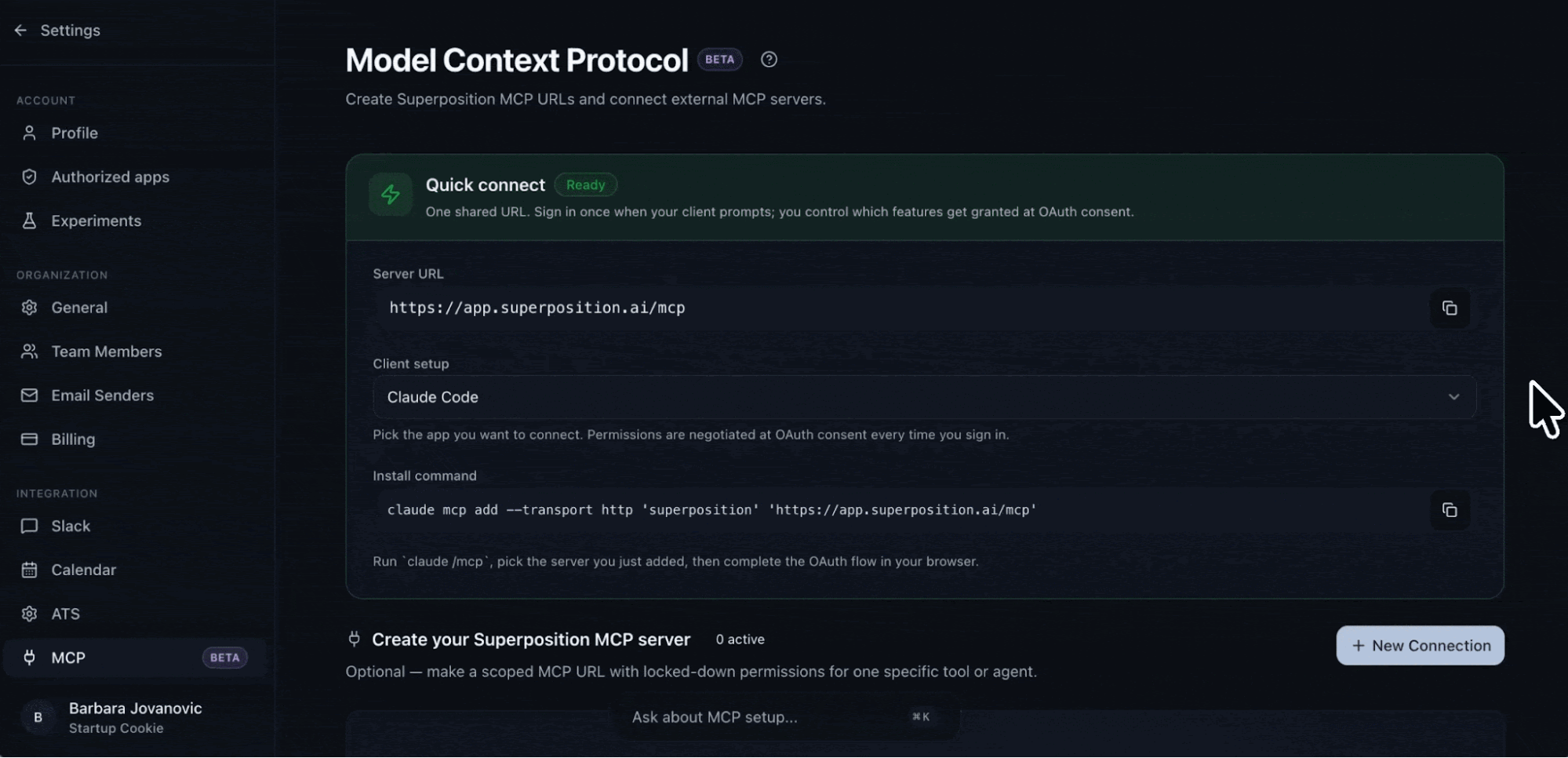
For Claude Code, run the install command shown in the Quick connect panel:
claude mcp add --transport http 'superposition' 'https://app.superposition.ai/mcp'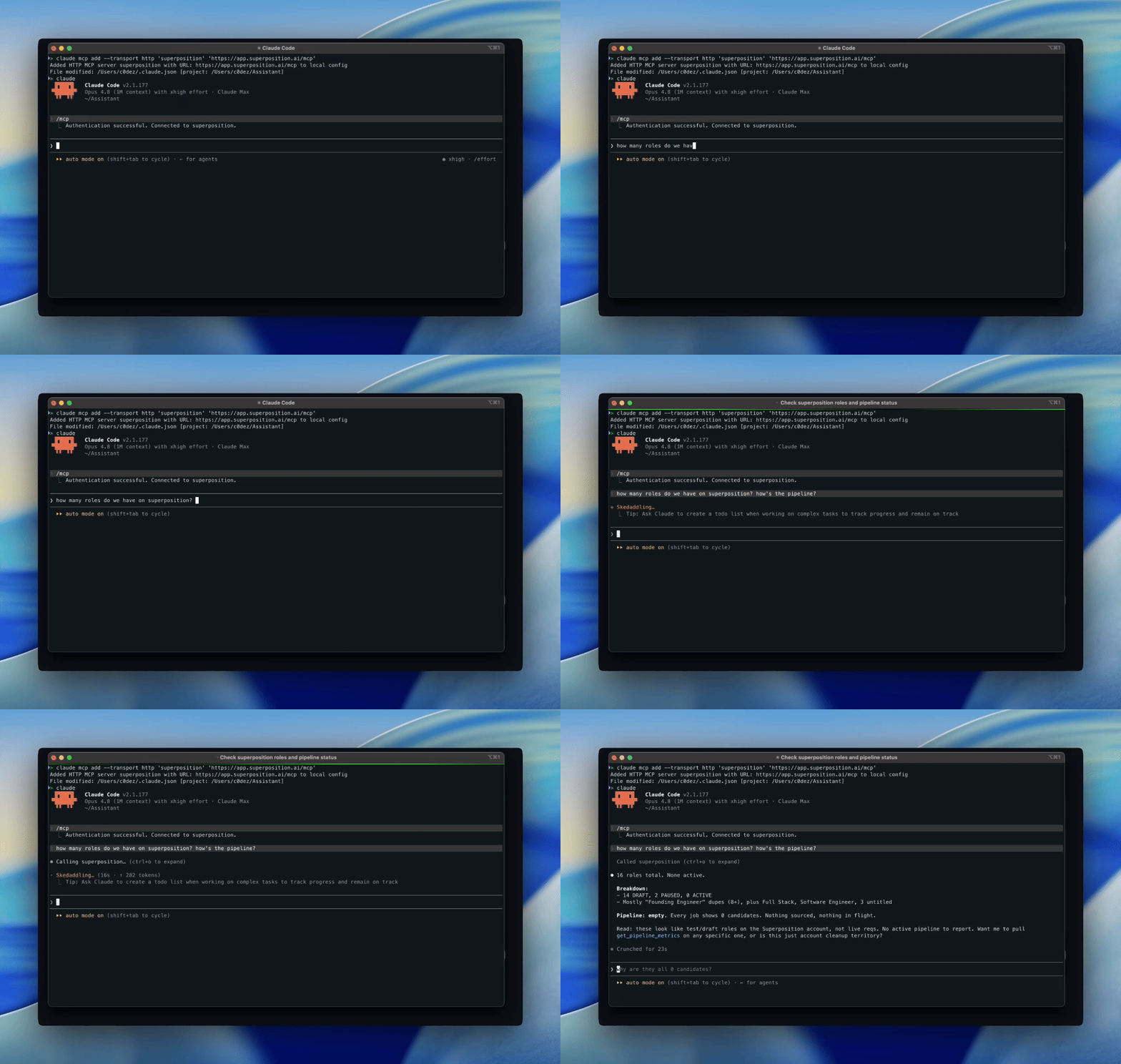
Then run claude /mcp, pick the Superposition server you just added, and complete the OAuth flow in your browser. For other clients, paste the server URL into your client's MCP configuration and follow its OAuth flow. Permissions are negotiated at the OAuth consent screen every time you sign in, so you control what gets granted on each connection.
Step 3: Choose what to grant
During sign-in, a consent screen asks what this connection can reach. You pick the organization it runs inside, decide whether to turn on the Agent permission, and choose which data areas to give read access to. Each area maps to a set of Superposition tools. You can change what you grant every time you sign in.
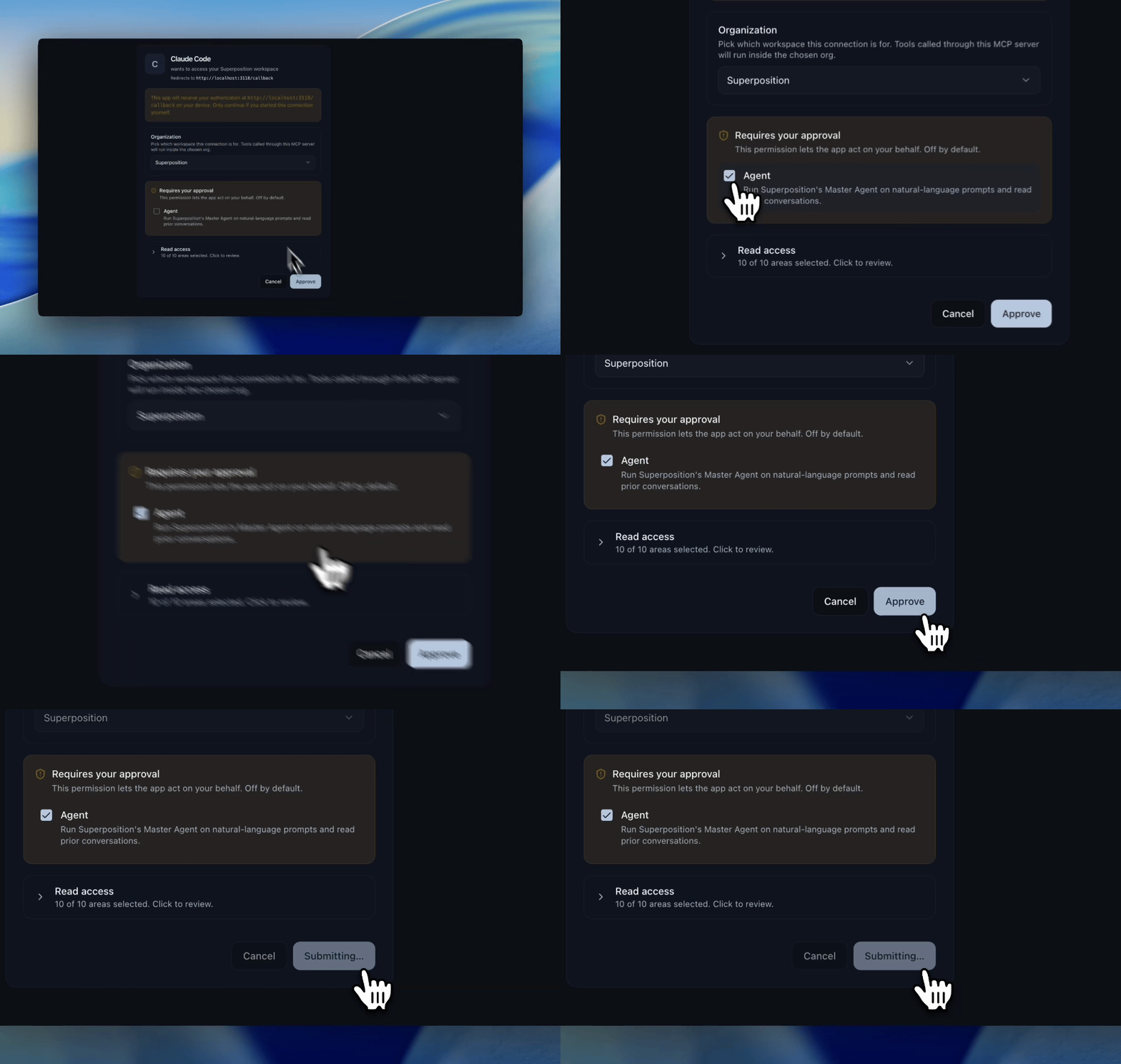
Here is what each option covers:
- Self-doc context lets the agent call
get_superposition_contextto discover what tools are available. Enable this on every connection. Without it, the connected agent will have access to tools but won't know they exist or how to call them. - Agent is the most powerful option, so it sits on its own and stays off until you approve it. It lets the external agent run Superposition's Master Agent on natural language prompts and read prior conversations. With it on, you can type “find me three senior engineers in NYC who've worked at Series A startups” into Claude and Superposition's agent will run that search in the background.
- Jobs provides access to read jobs and pipeline state.
- Candidates opens access to read candidates and their stage history.
- Candidate emails exposes inbound/outbound email history per candidate.
- Companies lets the agent read companies in your CRM.
- Clients provides access to read your client organization records.
- Interviews gives access to read scheduled interviews and stages.
- Scheduling opens access to read calendar slots and bookings.
- Insights lets the agent read agent learnings and insights.
- Onboarding provides access to read onboarding state for the active client.
Additional permissions may appear here as we add capabilities to the platform.
Step 4: Test the connection
Once sign-in finishes, your agent has access, and you can start asking it questions in plain English.
Try "how many open roles do we have?" or "how is my pipeline looking?" Superposition answers each question from your live data. The agent runs the request against Superposition in the background and pulls the answer straight into your conversation.
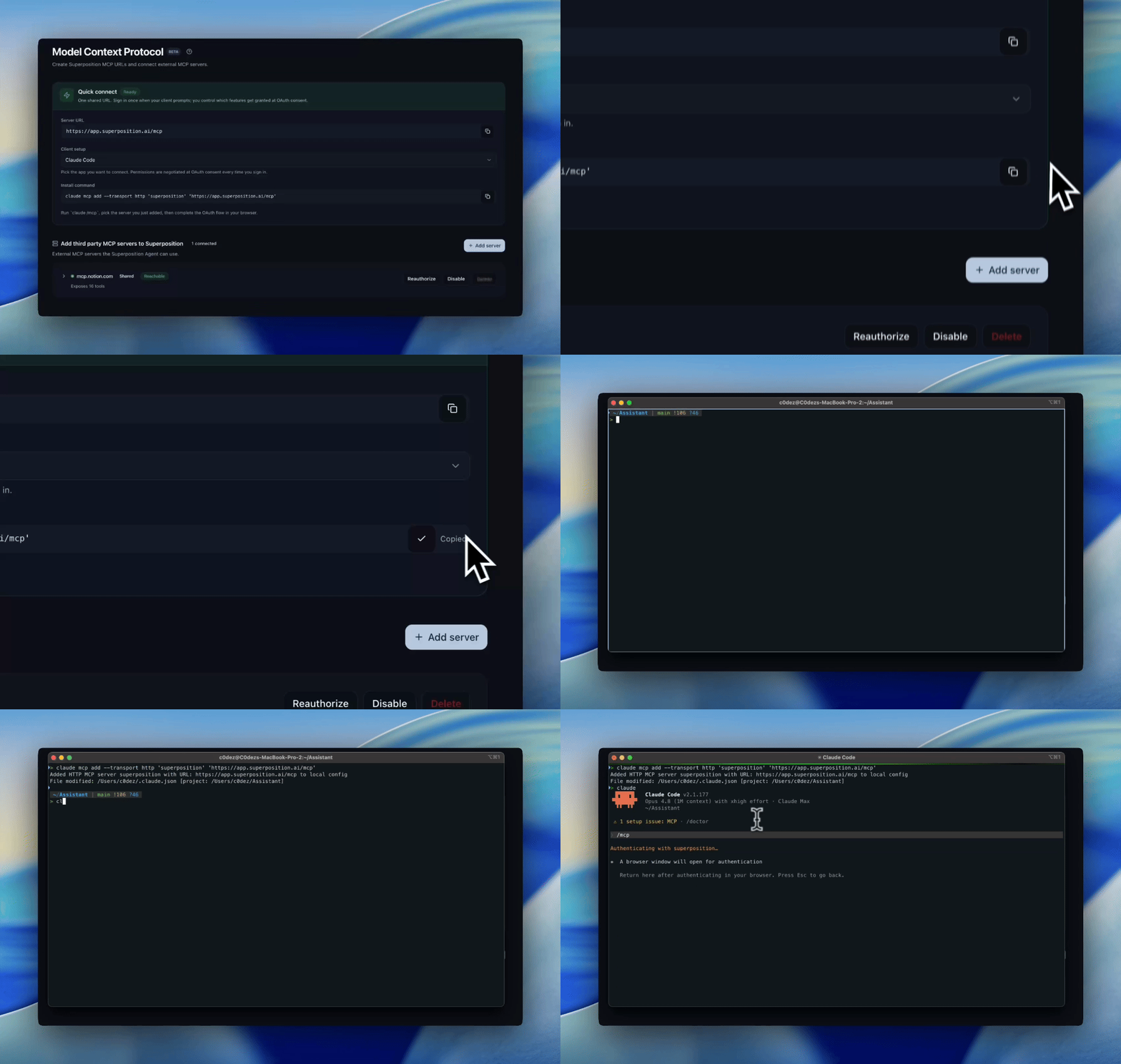
Connecting external tools to Superposition
The first section gave your agent access to Superposition. This section goes the other direction: you connect an external MCP server so that Superposition's own agent can call tools that live outside of Superposition.
This is what makes the integration bidirectional. Your Claude reads your Superposition pipeline. Superposition's agent checks your Google Calendar to find interview slots. Both agents pull from each other without either of them becoming a bottleneck, and without you tabbing between apps to copy information back and forth.
Step 1: Add a server
On the same MCP settings page, scroll below your Superposition MCP server connections. You'll see a section titled “Add third party MCP servers to Superposition” with an “+ Add server” button.
This could be a calendar integration, a project management connector, a CRM, or anything else that exposes tools via MCP.
Step 2: Authorize and manage
Complete the authorization flow the external server requires. Once connected, the server appears in your list with two management options:
- Reauthorize refreshes the connection if the token has expired or the server's credentials have rotated.
- Disable temporarily stops Superposition from calling that server's tools without removing the connection entirely. Useful when you want to pause access without losing your configuration.

After connecting, Superposition's agent can call the external server's tools mid-workflow. If you've connected a calendar server, Superposition can check availability when scheduling interviews instead of asking you to look it up. If you've connected a project management server, it can pull sprint context when sourcing for engineering roles.
The MCP page always shows the active connection count at the top of each section. You can see at a glance how many agents have access and how many external servers are connected.
Need help with setup?
At the bottom of the MCP settings page, there's an “Ask about MCP setup...” prompt.
If any step in this guide isn't clear or your specific client requires a configuration not covered here, use that prompt. Superposition's agent knows the full setup flow and can walk you through it!
Get started
Existing users: Settings → Connect MCP.
New to Superposition? Book a demo and we'll walk you through it.